
YouTube is full of useful content, but extracting information from videos can be slow. Whether you’re trying to take notes, reuse content, or find specific details, watching an entire video isn’t always practical.
That’s why many people now rely on a YouTube transcript generator to convert videos into text quickly. The good news? You can do this easily on both PC and mobile without complicated steps.
Imagine trying to find one specific sentence in a 20-minute video. You scroll, pause, replay—and still might miss it. This is exactly the problem a YouTube transcript generator is designed to solve.
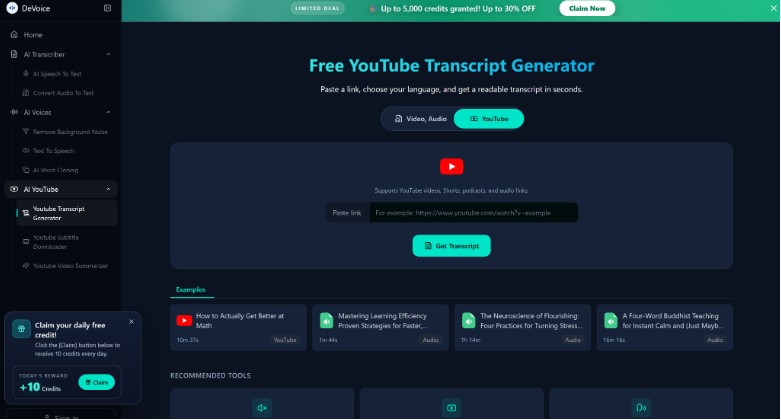
With Devoice AI, you can instantly convert video audio into clear, readable text. This makes it easier to find, use, and repurpose information without wasting time.
Why Transcribing YouTube Videos Is So Useful
Before jumping into the process, it helps to understand why transcription matters.
Videos are great for engagement, but text gives you flexibility. Once a video is converted into text, you can:
- Read instead of watching
- Search for specific keywords instantly
- Copy and reuse content
- Create notes or summaries
- Turn videos into blogs or posts
For students, creators, and professionals, this can save a huge amount of time.
Method 1: Transcribe YouTube Videos on PC
Using a desktop or laptop gives you more control and makes the process faster, especially for longer videos.
Option A: Use YouTube’s Transcript Feature
This is the easiest method and doesn’t require any tools.
Steps:
- Open the YouTube video on your PC
- Click on the three dots below the video
- Select “Show transcript”
- The transcript panel will appear
- Copy the text into your document
What to expect:
- Quick and free
- Includes timestamps
- Needs manual cleanup
This method works well for basic needs, but it’s not the cleanest option.
Option B: Use a YouTube Transcript Generator
If you want faster and cleaner results, a YouTube transcript generator is the better choice.
With tools like Devoice AI, you can skip manual copying and get structured text instantly.
Steps:
- Copy the YouTube video URL
- Open the tool in your browser
- Paste the link
- Start transcription
- Download or copy the text
This method is ideal for content creators and professionals who need ready-to-use text without extra effort.
Method 2: Transcribe YouTube Videos on Mobile
You don’t need a computer to transcribe videos. You can do everything directly from your phone.
Option A: Use YouTube App (Manual Way)
Steps:
- Open the video in the YouTube app
- Tap on the video description or menu
- Look for transcript or captions (if available)
- Copy text manually (may require switching to browser view)
This method works, but it’s not always smooth on mobile.
Option B: Use Online Transcript Tools on Mobile
The easiest way on mobile is to use a browser-based YouTube transcript generator.
Steps:
- Copy the video link from the YouTube app
- Open your mobile browser
- Paste the link into the tool
- Generate the transcript
- Copy or download the text
This is the fastest and most convenient option for mobile users.
PC vs Mobile: Which Is Better?
Both options work well, but each has its strengths.
- PC is better for long videos, editing, and formatting
- Mobile is better for quick access and on-the-go use
If you’re working professionally, PC is more efficient. But for casual use, mobile does the job just fine.
How to Speed Up the Transcription Process
If your goal is to transcribe videos as fast as possible, here are a few practical tips:
Use AI Tools Instead of Manual Methods
Manual transcription takes time. AI tools can do it instantly.
Choose Clear Audio Videos
Better audio leads to faster and more accurate results.
Avoid Long, Unnecessary Videos
Focus only on the content you actually need.
Skip Timestamps When Possible
They slow down editing and reduce readability.
What to Do After Transcribing
Once you have the text, you can use it in several ways.
Create Blog Content
Turn transcripts into full-length articles.
Make Notes
Highlight key points for study or research.
Extract Important Quotes
Use short snippets for social media or presentations.
Repurpose Content
Convert one video into multiple formats.
This is where transcription becomes truly valuable.
Common Issues and Quick Fixes
Even with a good YouTube transcript generator, you might face small issues.
Problem: Messy Formatting
Fix: Break text into paragraphs and clean it up.
Problem: Minor Errors
Fix: Do a quick review and correct mistakes.
Problem: Multiple Speakers
Fix: Separate sections for clarity.
These fixes take only a few minutes but improve quality a lot.
Who Should Use a YouTube Transcript Generator?
This process is useful for many types of users:
Students
Turn lectures into easy-to-read notes.
Content Creators
Convert videos into blogs, scripts, or captions.
Marketers
Extract ideas and messaging from video content.
Freelancers
Use transcripts for writing and research work.
Everyday Users
Save time while consuming long videos.
Why AI Tools Are the Smart Choice
In 2026, manual transcription is no longer practical for most people. AI tools have made the process faster, easier, and more reliable.
A good YouTube transcript generator can:
- Save hours of manual work
- Provide clean, readable text
- Help you focus on content instead of typing
Tools like Devoice AI make it possible to go from video to text in seconds, which is a huge advantage for anyone working with content regularly.
Final Thoughts
Transcribing YouTube videos to text doesn’t have to be slow or complicated. Whether you’re using a PC or mobile device, there are simple methods that can get the job done quickly.
If you just need basic text, YouTube’s built-in feature works fine. But if you want speed, accuracy, and clean formatting, using a YouTube transcript generator is the best approach.
Once your video is converted into text, you unlock new possibilities from faster learning to content creation and beyond.
If you regularly work with video content, learning this simple process can save you time and make your workflow much more efficient.